Cypress JS SDK
The Evinced Cypress JS SDK integrates with new or existing Cypress tests to automatically detect accessibility issues. By adding a few lines of code to your Cypress project, you can begin analyzing all the web pages and DOM changes to provide a dynamic view of how your site can become more accessible. As a result of the test, a rich and comprehensive report is generated to easily track issues to resolution.
Interested in seeing this in action? Contact us to get started!
Prerequisites
- Cypress version 10.0.0 or higher
Get started
Installation
To install Cypress JS SDK you will need either a file provided by Evinced Support or access to a remote repository that provides it. If you have neither, contact us to get started.
Installation with a locally provided file
With a local copy of the Cypress JS SDK gzipped tar package (.tgz extension), install it in your project using NPM or Node package manager of your choice:
1# Using NPM2npm install -D <path to cypress-sdk-<version>.tgz file>
Installation from a remote repository
Evinced Customers have the option of accessing Cypress JS SDK from a remote repository - the Evinced JFrog Artifactory - to keep their SDK version up-to-date and to share the SDK internally at their organization.
When access is enabled, Cypress JS SDK is available at
https://evinced.jfrog.io/artifactory/restricted-npm/%40evinced/cypress-sdk.
Installation using NPM:
1npm install @evinced/cypress-sdk
AI Skills
The @evinced/cypress-sdk package ships with built-in AI agent skills that guide your AI assistant through integrating the Evinced SDK — from initial setup and writing tests to configuring rules and generating reports.
To activate AI Skills, add the following to your project's AGENTS.md file (create it at the root of your project if it does not exist):
1## Context23Before working on any accessibility testing task, always read:45`node_modules/@evinced/cypress-sdk/evinced-ai/entry.mdc`67The entry.mdc file contains:8- Integration rules for the Evinced Cypress JS SDK9- Skills for setup, test writing, configuration, reporting, and logging10- Links to detailed documentation for each task type1112## When to use1314When the user asks about accessibility testing, WCAG compliance, ARIA attributes, Evinced SDK usage, or accessibility reports or scans, read the entry point file listed under Context.1516## Capabilities1718- Set up the Evinced SDK in Cypress projects19- Write accessibility tests using `evAnalyze`, `evStart`, `evStop`20- Configure accessibility rules and scopes21- Generate HTML, JSON, SARIF, or CSV reports22- Configure the SDK — proxy, screenshots, iframes, and `evConfig.json`23- Enable and tune SDK logging and log levels24- Control SDK toggles — kill switch, analytics opt-out, and mock engine25- Integrate accessibility checks into CI/CD pipelines
Note for monorepos: with pnpm, or yarn/npm workspaces, the package may be hoisted to the workspace root. If the path above does not exist, look for evinced-ai/entry.mdc under the workspace root's node_modules instead.
This works with any AI assistant that reads project context files (Cursor, Claude, Copilot, Windsurf, Gemini, and others).
Try asking your AI assistant:
- "Set up the Evinced SDK in my project"
- "Add accessibility checks to my existing Cypress test"
- "Scope the scan to only the navigation bar"
Authentication
To launch Cypress JS SDK, you need to have a Service ID and an API Key.
Where to find your Evinced SDK credentials
These credentials are available via the Evinced Product Hub in the “Automation for Web” or “Automation for Mobile” product areas. Click the “Get SDK” button to see the Service Account ID and API Key at the bottom of the page.
Authenticate for Offline Testing
There are two methods to provide the token: online mode and offline mode. Online mode contacts the Evinced Licensing Server. Offline mode assumes that an Evinced employee has supplied a JSON Web Token (JWT). If an offline token is required, please reach out to your account team or support@evinced.com.
Please set credentials in environment variables and reference the environment variables in code.
1# Online mode2export CYPRESS_EVINCED_SERVICE_ID=<serviceId>3export CYPRESS_EVINCED_API_KEY=<apiKey>45# Offline mode6export CYPRESS_EVINCED_SERVICE_ID=<serviceId>7export CYPRESS_EVINCED_AUTH_TOKEN=<token>
See the official Cypress environment variables documentation.
Setting credentials, an example:
1// Set online credentials method2Evinced.setCredentials({3 serviceId: Cypress.env('CYPRESS_EVINCED_SERVICE_ID'),4 secret: Cypress.env('CYPRESS_EVINCED_API_KEY'),5});67// OR89// If provided a JWT by Evinced10// Set offline credentials method11Evinced.setOfflineCredentials({12 serviceId: Cypress.env('CYPRESS_EVINCED_SERVICE_ID'),13 token: Cypress.env('CYPRESS_EVINCED_AUTH_TOKEN'),14});15
Your First Test
SDK Initialization
To use Cypress JS SDK, you first need to authenticate. Please refer to Authentication for details.
In the cypress/support/e2e.js file add the following lines to initialize SDK and provide either offline or online token.
Note: for Cypress version <10 the file cypress/support/index.js should be used.
cypress.config.js with expose (Cypress 15.10+ / 16):
1const { defineConfig } = require('cypress');2const { cyEvTask, cyTaskUploadToPlatform } = require('@evinced/cypress-sdk');34module.exports = defineConfig({5 e2e: {6 setupNodeEvents(on) {7 on('task', { ...cyEvTask, ...cyTaskUploadToPlatform });8 }9 },10 expose: {11 evincedConfig: {12 switchOn: true,13 scan: { iframes: true, rootSelector: '#main' },14 report: {15 format: 'html',16 outputDir: './evincedReports',17 fileName: 'aggregatedReport'18 },19 platform: { upload: { enabled: false } }20 }21 },22 env: {23 AUTH_SERVICE_ID: 'your-service-id',24 AUTH_TOKEN: 'your-offline-token'25 }26});
cypress.config.js with env (Cypress 12–15):
1module.exports = {2 e2e: {3 setupNodeEvents(on) {4 on('task', {5 evTask: require('@evinced/cypress-sdk').cyEvTask6 });7 }8 },9 env: {10 evincedConfig: {11 switchOn: true,12 scan: { iframes: true, rootSelector: '#main' },13 report: {14 format: 'html',15 outputDir: './evincedReports',16 fileName: 'aggregatedReport'17 },18 platform: { upload: { enabled: false } }19 },20 AUTH_SERVICE_ID: 'your-service-id',21 AUTH_TOKEN: 'your-offline-token'22 }23};
Evinced.init() with modern nested keys:
1import Evinced from '@evinced/cypress-sdk';23Evinced.init({4 scan: { iframes: true, rootSelector: '#main' },5 report: {6 format: 'html',7 outputDir: './evincedReports',8 fileName: 'aggregatedReport'9 },10 platform: { upload: { enabled: false } }11});
Deprecated (legacy flat keys only — not the Evinced.init() API):
1Evinced.init({2 enableScreenshots: false,3 reporterOptions: {4 reportFormat: 'html',5 filePath: './evincedReports/aggregatedReport.html'6 }7});
1import Evinced from '@evinced/cypress-sdk';23// Initialize SDK4Evinced.init();56// Set online credentials7Evinced.setCredentials({8 serviceId: Cypress.env('EVINCED_SERVICE_ID'),9 secret: Cypress.env('EVINCED_API_KEY'),10});1112// Set offline credentials13Evinced.setOfflineCredentials({14 serviceId: Cypress.env('EVINCED_SERVICE_ID'),15 token: Cypress.env('EVINCED_AUTH_TOKEN'),16});
Register Required Tasks
Starting from version 5.0.0, it is mandatory to register the 'evTask' in your cypress.config.js.
Version 5.0.0+
1const { defineConfig } = require("cypress");2const Evinced = require("@evinced/cypress-sdk").default;34module.exports = defineConfig({5 e2e: {6 setupNodeEvents(on) {7 on("task", {8 evTask: Evinced.cyEvTask9 });10 }11 }12});
Note: If you are using an earlier version of the Cypress SDK and want to upload to the platform, please reach out to Evinced support.
Add Evinced Accessibility Checks (Single Run Mode)
This is a simple example of how to add an Evinced accessibility scan to a test. Please note the inline comments that give detail on each test step.
1it("Evinced basic example", () => {2 // Navigate to site3 cy.visit("https://demo.evinced.com/");4 //Scan for a11y issues, get the result and assert on the number of issues found5 cy.evAnalyze().should((issues) => {6 expect(issues).to.be.empty();7 });8});
Add Evinced Accessibility Checks (Continuous Mode)
This is an example of how to add a continuous Evinced accessibility scan to a test. Using the
evStart() and evStop() methods, the Evinced engine will continually scan in the background capturing all DOM changes and page navigation as the test is executed. This will capture all accessibility issues as clicking on drop-downs or similar interactions reveals more of the page. The advantage of continuous mode is that no interaction with the actual test code is needed.
1context('Evinced Demo Site tests', () => {23 it('Search Test', () => {4 cy.visit('https://demo.evinced.com/');56 // Start the Evinced engine7 cy.evStart();89 const BASE_FORM_SELECTOR = '#gatsby-focus-wrapper > main > div.wrapper-banner > div.filter-container';10 const SELECT_HOME_DROPDOWN = `${BASE_FORM_SELECTOR} > div:nth-child(1) > div > div.dropdown.line`;11 const SELECT_WHERE_DROPDOWN = `${BASE_FORM_SELECTOR} > div:nth-child(2) > div > div.dropdown.line`;12 const TINY_HOME_OPTION = `${BASE_FORM_SELECTOR} > div:nth-child(1) > div > ul > li:nth-child(2)`;13 const EAST_COST_OPTION = `${BASE_FORM_SELECTOR} > div:nth-child(2) > div > ul > li:nth-child(3)`;14 cy.get(SELECT_HOME_DROPDOWN).click();15 cy.get(TINY_HOME_OPTION).click();16 cy.get(SELECT_WHERE_DROPDOWN).click();17 cy.get(EAST_COST_OPTION).click();1819 // Conclude the scan, print issues to cy.log with logIssues and print the report JSON object to browser's console20 cy.evStop({logIssues: true}).should((issues) => {21 console.log(JSON.stringify(issues, null, 2));22 });23 });24});
API
Evinced.init(options)
Prepares the Evinced object for use in the project.
1import Evinced from "@evinced/cypress-sdk";2Evinced.init();
Note: this call is intended to be done only once in support file. Second call of this method will lead to the error.
Refer to Configuration to see examples of initializing with options.
Implementation Details
- Listens to Cypress events
window:before:load- Injects Evinced to the page, continues recording if neededwindow:before:unload- Stores the state of the current pagetest:before:run- Initializes test scope state
- Registers
evcommandsevAnalyze()evStart()evStop()evSaveFile()
- Registers Chai assertions
evValid()
evAnalyze(options)
Scans the current page and returns a list of accessibility issues. This is the recommended method for static page analysis.
Note: This method is not supported if evStart() is already running.
Recommended:
1cy.evAnalyze({ scan: { rootSelector: "#some .selector" } }).should((issues) => {2 expect(issues).to.have.length(6);3});
Deprecated:
1cy.evAnalyze({ rootSelector: "#some .selector" }).should((issues) => {2 expect(issues).to.have.length(6);3});
Returns Promise<Issue[]>.
The returned report object contains a list of accessibility issues.
For more information regarding reports as well as the report object itself, please refer to our detailed Web Reports page.
evStart(options)
Continually watches for DOM mutations and page navigation, recording accessibility issues
until the evStop() method is called. This method is recommended for dynamic page flows.
Recommended:
1cy.visit("https://example.com/page-a");2cy.evStart({ scan: { rootSelector: "#some .selector" } });3cy.visit("https://example.com/page-b");4cy.evStop().should((issues) => {5 expect(issues).to.have.length(6);6});
Deprecated:
1cy.visit("https://example.com/page-a");2cy.evStart({ rootSelector: "#some .selector" });3cy.visit("https://example.com/page-b");4cy.evStop().should((issues) => {5 expect(issues).to.have.length(6);6});
Returns Promise<void>.
evStop(options)
Stops the issue-gathering process started by evStart().
1cy.visit('https://example.com/page-a');2cy.evStart();3cy.get('#some .selector').click();4cy.visit('https://example.com/page-b');5cy.get('#another .selector').click();6cy.evStop({logIssues: true}).should((issues) => {7 expect(issues).to.have.length(10);8});
Returns Promise<Issue[]>.
The returned report object includes all accessibility issues detected between
the evStart() and evStop() method calls.
For more information regarding reports as well as the report object itself, please refer to our detailed Web Reports page.
1{2 logIssues: false // Will log every accessibility issue to Cypress console when true3}
Page Flows API
Page Flows take accessibility testing further by putting the page through real interaction — tabbing through the page, resizing the viewport — the way a real user actually would, then checking what that interaction reveals. It's an empirical layer of coverage on top of evAnalyze()'s static analysis, surfacing more issues.
Run them standalone with the methods below, or fold their findings straight into evAnalyze() by turning on scan.pageFlows.enabled — see Page Flows under Configuration.
analyzeFocusIndication(options?)
Tabs through every focusable element on the page and reports keyboard-focus visibility problems: a missing or low-contrast focus indicator.
1cy.pageFlows.analyzeFocusIndication().should((issues) => {2 // issues is Issue[]3});
Override the timeout for a single call:
1cy.pageFlows.analyzeFocusIndication({2 scan: { pageFlows: { timeout: 90000 } }3}).should((issues) => {4 // issues is Issue[]5});
Focus indication requires a Chromium-family browser (Chrome, Edge, Electron), because it drives real keyboard focus over CDP. On any other browser the check is skipped: the SDK logs a warning and the command yields an empty Issue[] rather than failing. Do not treat an empty result as a pass without confirming which browser the run used.
Accepts the same configuration overlay as evAnalyze() (for example scan.pageFlows.timeout, shown above) either project-wide or for this call only.
Yields Issue[] — the same issue shape every other method returns, so the result merges, filters and saves through the machinery you already use.
Note: Chromium only. On a browser without Chrome DevTools the call returns no issues. This moves the page's real keyboard focus and is comparatively slow. Not supported between evStart() and evStop() — the command fails.
analyze2DScroll(options?)
Shrinks the page to a 320x256 CSS viewport — the standard's "400% zoom" equivalent — and reports content that then needs scrolling in both directions at once to reach: self-contained, nested-horizontal and nested-vertical scrolling. Maps WCAG 1.4.10 (Reflow). Elements with role="table", role="grid", or <video> are exempt, per the criterion's own two-dimensional-layout carve-out.
1cy.pageFlows.analyze2DScroll().should((issues) => {2 // issues is Issue[]3});
Override the timeout for a single call:
1cy.pageFlows.analyze2DScroll({2 scan: { pageFlows: { timeout: 90000 } }3}).should((issues) => {4 // issues is Issue[]5});
Accepts the same configuration overlay as evAnalyze() (for example scan.pageFlows.timeout, shown above) either project-wide or for this call only.
Yields Issue[] — the same issue shape every other method returns, so the result merges, filters and saves through the machinery you already use.
Note: Chromium only. On a browser without Chrome DevTools the call returns no issues. This resizes the browser viewport for the duration of the call and is comparatively slow. Not supported between evStart() and evStop() — the command fails.
evSaveFile(issues, format, destination)
Saves issues in a file with the specified format and location.
Supported formats are json, html, sarif, and csv.
Find detailed information in the Web Reports page.
1const filePathJson = "./reports/results.json";2const filePathSarif = "./reports/results.sarif.json";3const filePathHtml = "./reports/results.html";4const filePathCsv = "./reports/results.csv";5cy.visit("https://example.com/page-a");6cy.evAnalyze().then((issues) => {7 cy.evSaveFile(issues, "json", filePathJson);8 cy.evSaveFile(issues, "sarif", filePathSarif);9 cy.evSaveFile(issues, "html", filePathHtml);10 cy.evSaveFile(issues, "csv", filePathCsv);11 cy.readFile(filePath).should("exist");12});
Returns Promise<void>.
evValid(options)
Throws a chai exception if any issues exist that don’t match the provided filters.
1cy.evAnalyze().should("be.evValid", {2 ignoreSeverities: ["CRITICAL"],3 ignoreTypes: ["NOT_FOCUSABLE"],4});
Default options:
1{2 ignoreSeverities: [],3 ignoreTypes: []4}
Aggregated Report
The aggregated report feature allows you to have a general aggregated report for
the whole run (not only for one test or suite). This report will contain all the
issues found by the tests where evStart() and
evStop() commands were called. It is still possible to use the
evSaveFile() command in any place of your code along with this
Aggregated Report feature.
Important! The feature is not supported by the Cypress frameworks versions <10.
Recommended (cypress.config.js):
1module.exports = {2 env: {3 evincedConfig: {4 report: {5 format: 'html', // Sets a desired format for the report. Available options are: html, json, csv, and sarif.6 fileName: 'aggregatedReport', // Specifies a name of the final report. Mandatory.7 outputDir: './evincedReports', // Specifies a path to the final aggregated report file. Mandatory.8 tmpDir: './evincedReports/tmp' // A directory for storing Evinced tmp files. Optional.9 }10 }11 }12};
Available formats: html, json, csv, sarif. The Cypress aggregated reporter generates one report per run — specify a single format string (not an array).
report.cleanup defaults to true (legacy: reporterOptions.deleteTmpFiles). Set report.cleanup: false to keep per-spec tmp files after the run.
Deprecated (cypress.config.js — legacy flat reporterOptions):
1const os = require('os');23module.exports = {4 env: {5 evincedConfig: {6 reporterOptions: {7 reportFormat: 'html', // Sets a desired format for the report. Available options are: html, sarif, and json.8 filePath: './evincedReports/aggregatedReport.html', // Specifies a path to the final aggregated report file.9 tmpDir: os.tmpdir(), // Specifies the temporary directory to store temporary report files.10 reportTimeStamp: new Date().toISOString() // Unique timestamp for the test run. Do not change unless you know why.11 }12 }13 }14};
Configuration
The same configuration options can be used when initializing the Evinced object
using Evinced.init and when calling the evStart()
and evAnalyze() methods but with a bit different consequences.
Providing options when initializing defines a global configuration for all calls
of evAnalyze() and evStart(), while providing options to
either of those methods affect only the test in which they are called. Some SDKs
also let you define configuration outside your code, in a config file that is
picked up automatically at startup.
Options provided in either evAnalyze() or evStart() override
those set in Evinced engine initialization.
Engines Configuration
Evinced uses two separate engines when scanning for accessibility issues, one is the aXe engine and the other is the Evinced engine. By default, Evinced disables the aXe Needs Review and Best Practices issues based on customer request and due to the fact they are mostly false positives. Please note this setting when comparing issue counts directly. See an example of how to enable Needs Review and Best practices issues in the Toggles section.
Configuration Object
Configure the Cypress SDK through cypress.config.js and Evinced.init(). Both accept the modern nested structure below. Cypress does not load evConfig.json, evConfig.yaml, or evConfig.yml files.
Cypress 16 Migration
Starting in Cypress 15.10+, Cypress.env() is deprecated for non-secret configuration. These settings should now be placed under the expose property in cypress.config.js.
Action required: Move evincedConfig and any EV_* overlay keys to expose. See the recommended cypress.config.js example below.
Important: Do not move secrets to
expose. KeepAUTH_TOKENandAUTH_SERVICE_IDinsideenvonly.
Backward compatibility: You do not need to rush this change. Cypress 12–15 projects continue to work completely unchanged — the Evinced SDK reads Cypress.expose() first and automatically falls back to Cypress.env() when expose is absent.
1type SkipValidation = {2 selector: string;3 urlRegex: string;4 validationTypes: string[];5};67type EvConfig = {8 switchOn?: boolean;9 scan?: {10 rootSelector?: string;11 iframes?: boolean;12 iframeDomains?: string[];13 screenshots?: { enabled?: boolean };14 pageFlows?: { enabled?: boolean; timeout?: number };15 withPasses?: boolean;16 };17 analysis?: {18 AXE_CONFIG?: Record<string, unknown>;19 TOGGLES?: Record<string, boolean>;20 SKIP_VALIDATIONS?: SkipValidation[];21 ISSUE_CONTENT_PER_TYPE?: Record<string, { knowledgeBaseLink: string }>;22 RECORDING_SERVICE?: Record<string, unknown>;23 [key: string]: unknown;24 };25 report?: {26 format?: 'json' | 'html' | 'csv' | 'sarif';27 outputDir?: string;28 fileName?: string;29 aggregate?: boolean;30 cleanup?: boolean;31 tmpDir?: string;32 };33 platform?: {34 upload?: { enabled?: boolean; autoUpload?: boolean };35 };36 logging?: {37 preset?: 'errors' | 'standard' | 'diagnostic';38 channels?: { engine?: boolean; sdk?: boolean };39 };40 network?: {41 idle?: { enabled?: boolean; timeout?: number; maxWait?: number };42 proxy?: Record<string, unknown>;43 };44};
cypress.config.js with expose (Cypress 15.10+ / 16):
1const { defineConfig } = require('cypress');23module.exports = defineConfig({4 expose: {5 evincedConfig: {6 switchOn: true,7 scan: { rootSelector: '#main', iframes: true }8 }9 },10 env: {11 AUTH_SERVICE_ID: 'your-service-id',12 AUTH_TOKEN: 'your-offline-token'13 }14});
cypress.config.js with env (Cypress 12–15):
1module.exports = {2 env: {3 evincedConfig: {4 switchOn: true,5 scan: { rootSelector: '#main' }6 }7 }8};
Evinced.init():
1Evinced.init({2 scan: { rootSelector: '#main' }3});
Deprecated (legacy flat keys only — not the Evinced.init() API):
1Evinced.init({2 rootSelector: '#main',3 enableScreenshots: false,4 axeConfig: { rules: { 'link-name': { enabled: false } } },5 toggles: { USE_AXE_NEEDS_REVIEW: true },6 skipValidations: [],7 issuesContentPerType: {},8 sdkLogging: { enable: true, level: 'debug' },9 reporterOptions: { reportFormat: 'html', filePath: './evincedReports/aggregatedReport.html' },10 uploadToPlatformOptions: { enableUploadToPlatform: true }11});
Log Issues
Enables inclusion of issues in Cypress logs.
logIssues is a Cypress-specific option. Configure it via Evinced.init() or per-command options. It is not part of the unified EvConfig type block below yet; TypeScript definitions will be added in an upcoming Cypress SDK release.
1Evinced.init({ logIssues: true });
Root Selector
Sets a CSS selector to limit the Evinced Engine to scan only the selected element and its children. Must be a valid CSS selector. If not set, the Evinced Engine will scan the entire document.
Default: no value
Recommended (per command):
1cy.evAnalyze({ scan: { rootSelector: '#some .selector' } }).should((issues) => {2 expect(issues).to.have.length(6);3});
Deprecated (per command — legacy flat rootSelector):
1cy.evAnalyze({ rootSelector: '#some .selector' }).should((issues) => {2 expect(issues).to.have.length(6);3});
User-Defined Labels
Attaches your own metadata to every issue element, so a report can be grouped by your
structure — team, feature area, component — instead of by DOM position. Labels appear on each
issue under elements[].userLabels, grouped by the kind of rule that produced them:
1"userLabels": {2 "matchingSelectors": ["#cart |+ .buy-button"],3 "attributes": {4 "data-testid": ["checkout-submit"]5 },6 "callback": {7 "team": ["checkout"],8 "stableId": ["WRONG_SEMANTIC_ROLE:BuyButton"]9 }10}
Three rule types are available, and they can be combined:
selector— label an element by a CSS selector it matches or descends from.attribute— label an element with the value of an attribute on it or its nearest ancestor.function— this is the option to reach for when you need a stable identity for an issue that survives DOM changes — for example a component name read from adata-attribute, or an id built from an element's position in your own component tree rather than in the document.
Default: no labels.
All three rule types. Set them once in the global config so every scan gets them, or per command.
Cypress does not read evConfig files: project-wide options come from cypress.config.js
(expose.evincedConfig, or env.evincedConfig before Cypress 15.10) or from Evinced.init().
selector, attribute, and ref-based function rules are plain data, so they work in
cypress.config.js too. Only the fn form has to be set in code — Evinced.init() or the
command — because a live callback cannot travel through Cypress config.
1const userDefinedLabels = [2 // Label anything inside #cart by the matched ancestor.3 { type: 'selector', selector: '#cart |+ .buy-button' },4 // Label with the value of the nearest data-testid attribute.5 { type: 'attribute', attribute: 'data-testid', scope: 'closest' },6 // Compute labels yourself, per issue element.7 {8 type: 'function',9 fn: (element, typeId) => ({10 team: [element.closest('[data-team]')?.getAttribute('data-team') ?? 'unowned'],11 stableId: [`${typeId}:${element.getAttribute('data-component') ?? 'unknown'}`]12 })13 }14];1516// Global config — applies to every scan.17Evinced.init({ scan: { userDefinedLabels } });
Or for one command only:
1cy.evAnalyze({ scan: { userDefinedLabels } }).should((issues) => {2 expect(issues[0].elements[0].userLabels.callback.team).to.have.length(1);3});
Not available in this SDK. Cypress runs inside the browser and has no filesystem to read from,
so a scriptPath rule is skipped with a warning. Pass the function itself instead, as above.
If the function is placed there by the application or by your own script, pass only its ref.
It must start with __evUserLabelsFn_, so a typo cannot resolve an unrelated global such as
print.
1cy.window().then((win) => {2 win.__evUserLabelsFn_team = (element) => ({ tag: [element.tagName.toLowerCase()] });3});45cy.evAnalyze({6 scan: { userDefinedLabels: [{ type: 'function', ref: '__evUserLabelsFn_team' }] }7});
Cypress runs in the browser alongside the page under test, so the callback is handed over as a function rather than as source — it may use helpers and values from the spec file.
Choosing a form. The forms above differ in one way that matters: in all of them except the
last, you hand the SDK the callback itself and the SDK owns installing it — into the top document
and into every frame it scans, re-installing into frames that navigate or appear later, so nothing
further is required of you. Supply only a ref when the application itself puts the function on
the page; covering every frame is then your job, as described below. Where your SDK offers more
than one way to hand over the callback, keep a short one where it is used and move a longer one
into its own file. Except in Cypress the callback reaches the page as source, so it cannot use
helpers, imports, or variables from the file it is written in — define what it needs inside it.
Rules for the callback
A function rule runs your callback in the page under test, once per issue element:
1callback(element, typeId) -> Record<string, string[]>
element is the DOM element the issue was reported on, and typeId is the issue type
(the same value as type.id in a JSON report). Whatever the callback returns is merged into
that element's userLabels.callback.
Important: The callback itself is never part of the configuration the engine receives. Configuration is plain data — it has to be copied into the page, and then copied again into every frame the engine scans — so it can only carry a name, not a live function.
The function itself must exist on the global object (window) of each page or frame the engine
scans, under that name. The engine looks up the name and calls whatever it finds there. This name
is the rule's ref — you can choose it yourself, or let the SDK generate one.
Before using this feature, decide whether the function will already be on the page yourself, or whether the SDK should install it for you — see Who installs the callback below.
- It must be synchronous. The engine uses the return value immediately, so a promise is
never awaited. An
asyncfunction is rejected before it is installed — the rule is skipped and the SDK logs why — because that case can be spotted up front. A plain function that happens to return a promise can only be caught once it runs, so it is reported per element (see below). - Each callback needs its own
ref. Twofunctionrules resolving to the samerefare rejected, and the second is dropped with a warning. This is not a harmless duplicate: both rules would resolve to the same function on the page and produce identical labels, which is almost always a copy-paste slip rather than an intent. - It must return
Record<string, string[]>— an object whose values are arrays of strings. Any other shape is reported as an error. - It must not throw, though nothing breaks if it does — see below.
- In every SDK except Cypress it must be self-contained. These SDKs drive the browser from outside it, so the callback is serialised to source and injected into the page: helpers, imports, and variables from the surrounding file are not in scope when it runs. Inline everything it needs. Cypress runs inside the browser, so its callback may use values from the spec.
- Label keys and values are capped (20 keys and 50 values per key per callback; 200 characters each). Anything over the cap is dropped rather than truncated, because these are identity strings and a truncated id would silently collide with another.
Example
A callback that gives each issue an owner and an id tied to your component tree rather than to the element's position in the document:
1function (element, typeId) {2 // Helpers live inside the callback on purpose: outside Cypress it reaches the page as3 // source, so nothing from the file it was written in is in scope when it runs.4 function slug(value) {5 return String(value == null ? '' : value)6 .toLowerCase()7 .replace(/[^a-z0-9]+/g, '-')8 .replace(/^-+|-+$/g, '')9 .slice(0, 40);10 }1112 var card = element.closest('[data-component]');13 if (!card) {14 // Return an empty object, not nothing: `undefined` is not a `Record<string, string[]>`,15 // so falling off the end here would put a `__callbackError` on every element that16 // misses the lookup.17 return {};18 }1920 var labels = {};21 var team = card.getAttribute('data-team');22 if (team) {23 labels.team = [team];24 }25 // Pair the type with the component so two different issues on one component stay apart.26 labels.stableId = [typeId + ':' + slug(card.getAttribute('data-component'))];27 return labels;28}
Given <div data-component="Buy Button" data-team="checkout"> around the reported element,
that returns:
1{2 "team": ["checkout"],3 "stableId": ["WRONG_SEMANTIC_ROLE:buy-button"]4}
which arrives in the report under the callback bucket of that element:
1"userLabels": {2 "callback": {3 "team": ["checkout"],4 "stableId": ["WRONG_SEMANTIC_ROLE:buy-button"]5 }6}
The keys are yours — team and stableId here — and every value is an array of strings, even
when there is only one. Re-run the scan after the DOM around the button changes and stableId
stays the same, which is the point: it is derived from your component, not from the element's
position.
Who installs the callback
This is the decision from above, spelled out. The two arrangements differ in one important way — who's responsible for getting the function into every frame the engine scans, not just the top page.
The SDK installs it — you supply the function (or a .js file, or JavaScript source). The SDK
puts it on the page for you, in the top document and in every frame it scans, re-installing into
frames that navigate or appear later. Nothing further is required of you.
You install it — you assign the function to a global of your own on the page and pass only
that name as the rule's ref. The SDK then installs nothing, and the engine looks the ref up
separately in every frame it scans. So with iframe scanning enabled, you have to assign your
function in each frame's own global scope as well; a frame where the ref is not defined reports
__callbackError for every issue found there.
Either way the ref must start with __evUserLabelsFn_. The engine refuses any other name,
because the global object is full of callable things that are not label callbacks: a ref of
print or alert would otherwise resolve, pass the engine's is-it-a-function check, and be
invoked once per issue element. Names beginning __evUserLabelsFn_auto_ are reserved for the ones
the SDK generates, so a name you choose can never collide with one of those.
When a callback misbehaves
A broken callback never fails the scan. The problem is reported in the report itself, under
a reserved __callbackError label key beside the real labels, so it can be found without reading
SDK logs:
1"userLabels": {2 "callback": {3 "__callbackError": [4 "callback '__evUserLabelsFn_0' threw: el.closest is not a function"5 ]6 }7}
The same label key covers a callback that is missing, throws, returns the wrong shape, returns a
promise, or exceeds the label limits. To audit a run, search a JSON report for
__callbackError.
Axe Configuration
Configures Axe open-source accessibility toolkit, which the Evinced engine includes with its own, more extensive accessibility detection. For full Axe config options, see Axe Core API.
Recommended:
1const axeConfig = {2 rules: {3 'link-name': { enabled: false }4 }5};67// Global config (modern nested key)8Evinced.init({9 analysis: { AXE_CONFIG: axeConfig }10});1112// Command config13cy.evAnalyze({14 analysis: { AXE_CONFIG: axeConfig }15});16cy.evStart({17 analysis: { AXE_CONFIG: axeConfig }18});
Deprecated (legacy flat axeConfig key in env.evincedConfig or Evinced.init()):
1const axeConfig = {2 rules: {3 'link-name': { enabled: false }4 }5};67Evinced.init({ axeConfig });8cy.evAnalyze({ axeConfig });9cy.evStart({ axeConfig });
Errors Strict Mode
When true, stops current test execution when Evinced SDK non-critical
errors are thrown as runtime errors. Otherwise non-critical errors
are printed to console.
Default: false
strict is a Cypress-specific option. Configure it via Evinced.init() or per-command options. It is not part of the unified EvConfig type block below yet; TypeScript definitions will be added in an upcoming Cypress SDK release.
1Evinced.init({ strict: true });
Engine Logging
Set level of messages the Evinced engine will print to the console.
Valid levels are "debug", "info", "warn" and "error".
Default: "error"
Configure SDK log output with the logging.* section. To include analysis-engine messages in the console, set logging.channels.engine: true or use preset diagnostic (includes engine channel).
Recommended (cypress.config.js):
1module.exports = {2 env: {3 evincedConfig: {4 logging: { preset: 'diagnostic' }5 }6 }7};
Recommended (enable engine channel only):
1module.exports = {2 env: {3 evincedConfig: {4 logging: { channels: { engine: true } }5 }6 }7};
Deprecated (legacy flat sdkLogging in env.evincedConfig or Evinced.init()):
1Evinced.init({2 sdkLogging: { enable: true, level: 'debug', enableEngineLogs: true }3});
Reports Screenshots
When true, the Evinced SDK will include screenshots in its reports that
highlight elements with accessibility issues.
Default: false.
Note: Enabling screenshots may affect test run performance.
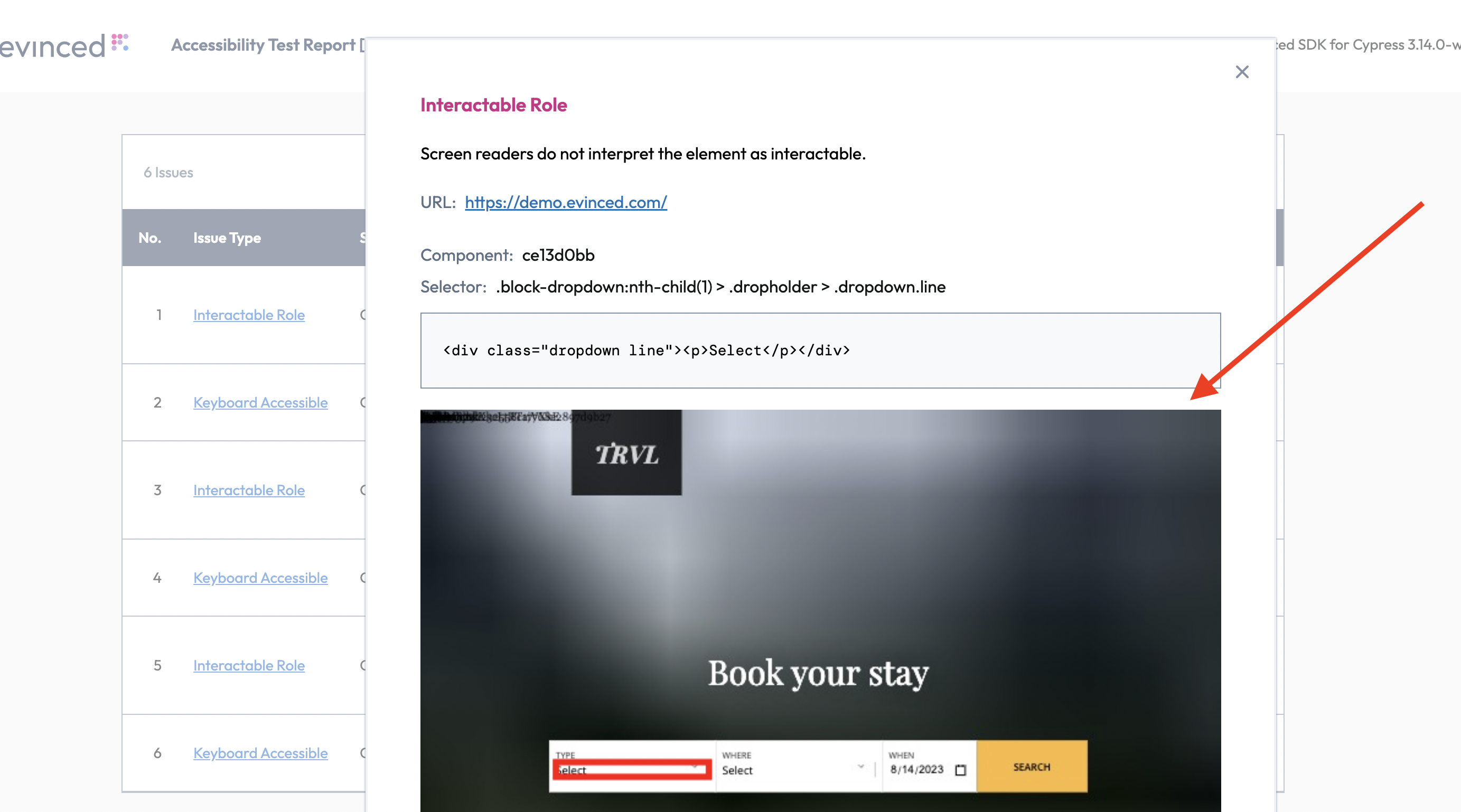
For enabling the Screenshots feature set scan.screenshots.enabled to true. It can be done in two ways:
Recommended (global config):
1Evinced.init({2 scan: { screenshots: { enabled: true } }3});
Recommended (per command):
1cy.evAnalyze({2 scan: { screenshots: { enabled: true } }3});4cy.evStart({5 scan: { screenshots: { enabled: true } }6});
Deprecated (global config — legacy flat enableScreenshots):
1Evinced.init({2 enableScreenshots: true3});
Deprecated (per command — legacy flat enableScreenshots):
1cy.evAnalyze({ enableScreenshots: true });2cy.evStart({ enableScreenshots: true });
Page Flows
When true, evAnalyze() also runs the checks behind cy.pageFlows.analyzeFocusIndication() and cy.pageFlows.analyze2DScroll(), merging their issues into the same returned array and into the saved and aggregated reports. Settable project-wide or for a single call.
Default: false.
Note: Enabling this can noticeably slow down evAnalyze(), since these checks tab through every focusable element and resize the viewport. This setting is ignored during a continuous evStart()/evStop() session — the SDK logs a warning rather than running the checks there. Run cy.pageFlows.analyzeFocusIndication() / .analyze2DScroll() directly, or a one-off evAnalyze() call, instead.
For every analysis in the run, add the setting to Evinced.init:
1Evinced.init({2 scan: { pageFlows: { enabled: true } }3});
It can also be set for a single call:
1cy.evAnalyze({2 scan: { pageFlows: { enabled: true } }3});
scan.pageFlows.timeout of 0 is capped at 118 seconds for the engine and 120 seconds for the Cypress command, so a slow page stops inside the command.
Toggles
Enables experimental features. Feature names and values may vary from release to release.
Example: Recommended:
1Evinced.init({2 analysis: {3 TOGGLES: {4 USE_AXE_NEEDS_REVIEW: true,5 USE_AXE_BEST_PRACTICES: true6 }7 }8});
Deprecated (legacy flat toggles):
1Evinced.init({2 toggles: { USE_AXE_NEEDS_REVIEW: true, USE_AXE_BEST_PRACTICES: true }3});
Skip Validations
Sets validation types to be skipped for specified URL pattern and CSS selector. Issue type IDs can be found by inspecting a JSON report as described in Web Reports.
Default: no validations skipped.
Recommended (per command):
1const skipValidationsParametersForEvStart = [2 {3 selector: 'span.slds-checkbox--faux',4 urlRegex: 'www\\.example\\.org',5 validationTypes: [6 'WRONG_SEMANTIC_ROLE',7 'NOT_FOCUSABLE',8 'NO_DESCRIPTIVE_TEXT'9 ]10 },11 {12 selector: 'div.showtime-b > figure',13 urlRegex: 'www\\.example\\.org',14 validationTypes: [15 'WRONG_SEMANTIC_ROLE',16 'NOT_FOCUSABLE'17 ]18 }19];20cy.evStart({21 analysis: { SKIP_VALIDATIONS: skipValidationsParametersForEvStart }22});
Deprecated (per command — legacy flat skipValidations):
1cy.evStart({2 skipValidations: skipValidationsParametersForEvStart3});
Skipping every validation type
To suppress all validation types for a selector, pass the wildcard * in place of a list of
type names.
The wildcard must be the only value. Listed alongside concrete type names it is not treated as a wildcard — the wildcard entry is ignored and only the concrete types given with it are skipped.
1const skipEverythingInParent = [2 {3 selector: '#parent, #parent *',4 urlRegex: 'www\\.example\\.org',5 validationTypes: '*'6 }7];8cy.evStart({9 analysis: { SKIP_VALIDATIONS: skipEverythingInParent }10});
A selector matches elements, not subtrees
Skip rules are evaluated against each reported element on its own, so a selector suppresses issues only on the elements it matches — not on anything nested inside them. To cover a container and its contents, list both the container and its descendants:
1#parent, #parent *
#parent alone suppresses only issues reported on #parent itself.
Include Validations
Reports only the validation types listed, and drops everything else. This is the allowlist counterpart of Skip Validations: skip removes selected types from an otherwise full report, while include restricts the report to selected types.
Use it to focus a test run on one area, such as color contrast or missing labels, without listing every other type to exclude.
Issue type IDs can be found by inspecting a JSON report as described in Web Reports.
Default: every validation type is reported.
The setting is global. Unlike Skip Validations it takes no URL pattern and no
CSS selector, and it applies to the whole scan. It is available only through the modern analysis
configuration schema shown below; there is no legacy flat spelling for it.
1const includedTypes = [2 'WRONG_SEMANTIC_ROLE',3 'NOT_FOCUSABLE',4 'NO_DESCRIPTIVE_TEXT'5];67// For one continuous-mode session:8cy.evStart({9 analysis: { INCLUDE_VALIDATIONS: includedTypes }10});1112// Or for a single analysis:13cy.evAnalyze({14 analysis: { INCLUDE_VALIDATIONS: includedTypes }15});
Reporting every validation type
Leaving the setting out reports every validation type. So does the wildcard *, on its own or as
a single-item list, and so does an empty list.
A wildcard listed next to concrete type names is not a wildcard. ['NOT_FOCUSABLE', '*'] reports
only NOT_FOCUSABLE; the * entry is treated as a type name that matches nothing. This mirrors
the behavior of Skip Validations.
Combining with Skip Validations
The two settings apply together, and a result is reported only if it passes both. Include narrows the set of types; skip can still suppress individual elements within the types that remain. A type named in both is reported only on the elements its skip rule does not match.
Type names are not validated
Type names are not checked against the engine's list of issue types, so a name that is not a real type ID matches nothing.
Note: an empty list and a list of names that match nothing produce opposite results. An empty
list reports every validation type. A list such as ['NOT_FOCUSABL'] reports no issues at all. If
a run returns zero issues unexpectedly, check the type names in the list against a JSON report.
Recording Service
This setting controls how frequently event-triggered functions are executed, helping to optimize performance and responsiveness. The option does not enable or disable the event-handling service itself but determines how frequently events are processed based on the selected mode.
Available modes:
debounce- Delays execution until a set time has passed since the last event. Useful for actions triggered by continuous input, such as typing in a search box, to avoid excessive function calls.throttle- Ensures execution at fixed intervals, regardless of event frequency. Ideal for scenarios like handling window resize events or scroll tracking, where limiting execution prevents performance degradation.
Default: Functions execute as triggering events occur.
An example of how to modify settings: Recommended (per command):
1cy.evStart({2 analysis: {3 RECORDING_SERVICE: {4 ENABLE_DEBOUNCE_NEW_SELECTORS: true,5 DEBOUNCE_NEW_SELECTORS_MS: 500,6 DELAY_MODE: 'throttle'7 }8 }9});1011cy.visit('https://demo.evinced.com/');1213cy.evStop();
Deprecated (per command — legacy flat recordingService):
1cy.evStart({2 recordingService: {3 ENABLE_DEBOUNCE_NEW_SELECTORS: true,4 DEBOUNCE_NEW_SELECTORS_MS: 500,5 DELAY_MODE: 'throttle'6 }7});89cy.visit('https://demo.evinced.com/');1011cy.evStop();
Knowledge-Base Link Overrides
Sets customized knowledge-base links in the reports. The links are displayed in the reports “Issue Type” column, as shown in the following screenshot:
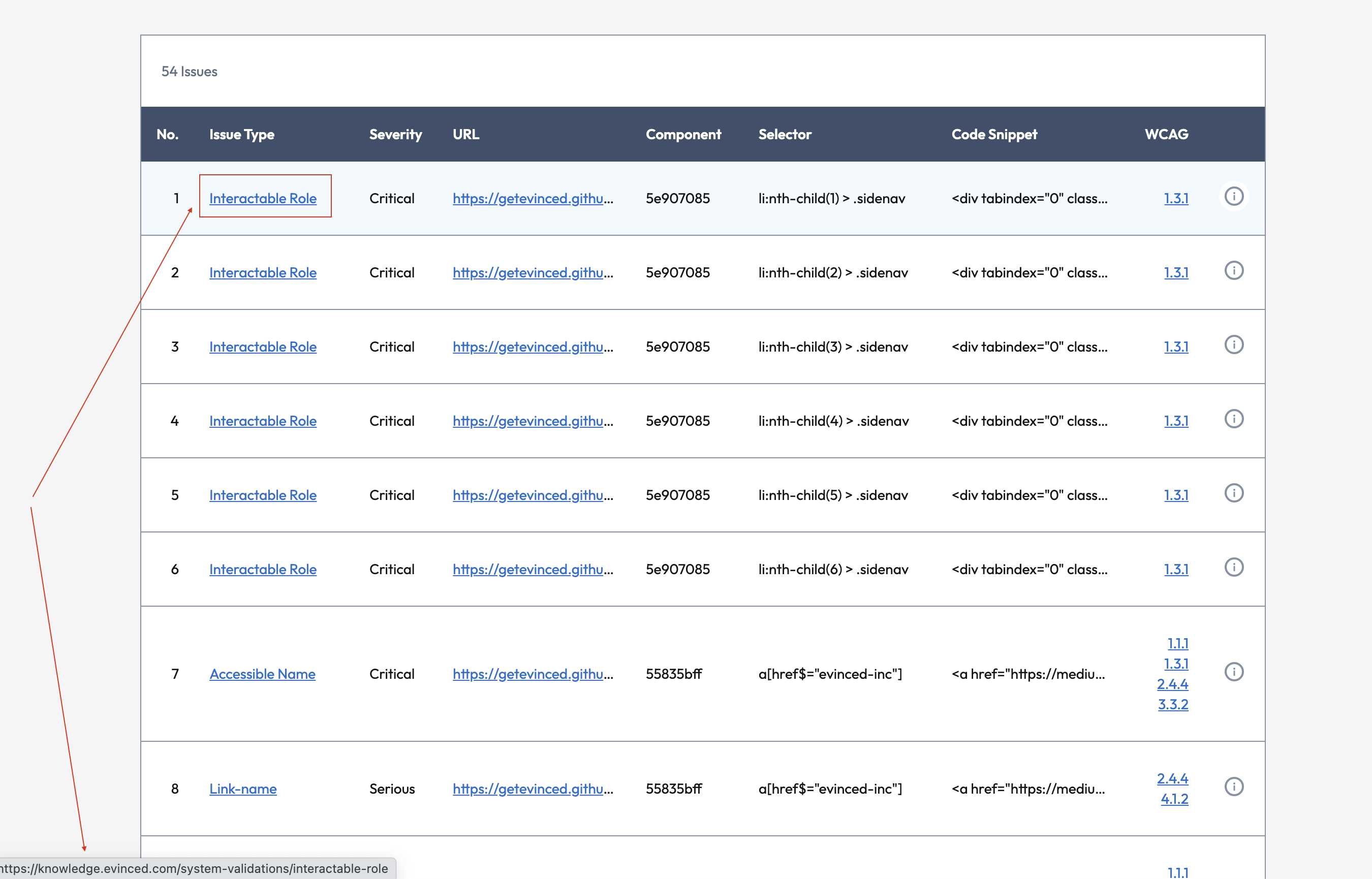
The knowledge base link can be overridden for every issue type ID.
Issue type IDs can be found by inspecting a JSON report as described in Web Reports.
For example, the issue with name Interactable Role has ID WRONG_SEMANTIC_ROLE.
Recommended:
1Evinced.init({2 analysis: {3 ISSUE_CONTENT_PER_TYPE: {4 WRONG_SEMANTIC_ROLE: {5 knowledgeBaseLink: 'https://yourKnowlegdeBase.com/'6 }7 }8 }9});
Deprecated (legacy flat issuesContentPerType key in env.evincedConfig or Evinced.init()):
1Evinced.init({2 issuesContentPerType: {3 WRONG_SEMANTIC_ROLE: {4 knowledgeBaseLink: 'https://yourKnowlegdeBase.com/'5 }6 }7});
Shadow DOM Support
Shadow DOM is now supported by default. No additional configuration is needed.
IFrames Support
When true, accessibility analysis includes iframe that exist inside the page.
Default: true.
When scan.iframes is enabled (default), accessibility analysis includes the application under test and same-origin page iframes — iframe elements in the page.
cypress.config.js with expose (Cypress 15.10+ / 16):
1const { defineConfig } = require('cypress');23module.exports = defineConfig({4 e2e: {5 setupNodeEvents(on) {6 on('task', { evTask: require('@evinced/cypress-sdk').cyEvTask });7 }8 },9 expose: {10 evincedConfig: {11 scan: { iframes: false }12 }13 }14});
cypress.config.js with env (Cypress 12–15):
1module.exports = {2 env: {3 evincedConfig: {4 scan: { iframes: false }5 }6 }7};
Evinced.init():
1Evinced.init({2 scan: { iframes: false }3});
Per command:
1cy.evStart({ scan: { iframes: false } });2cy.evAnalyze({ scan: { iframes: false } });
Important. Cross-origin page iframes are not analyzed. Findings inside those frames are not collected. Analysis still runs in the main application window and any same-origin nested frames.
During continuous recording (cy.evStart / cy.evStop), the SDK also analyzes dynamically added iframes and continues analysis when an existing iframe navigates to a new src.
Note: Since iframe analysis is enabled by default, tests may take longer on pages with multiple or complex iframes.
Include Hidden IFrames Domain
Configures which hidden iframe domains are included in accessibility analysis. By default, hidden iframes are excluded for performance and security reasons.
This setting allows you to specify a list of domains to analyze even when the iframe is hidden.
Supported pattern formats:
- Exact match:
example.com— matches the exact URL string - Regex with flags:
/.*\.google\.com.*/i— matches using regex with optional flags (i, g, m, u, y) - Raw regex:
.*\.example\.com.*— matches using a raw regex pattern
Per command:
1cy.evAnalyze({2 scan: {3 iframes: true,4 iframeDomains: [5 'https://exact-domain.com',6 '/.*\.google\.com.*/i',7 '.*\.example\.com.*'8 ]9 }10});
cypress.config.js with expose:
1const { defineConfig } = require('cypress');23module.exports = defineConfig({4 expose: {5 evincedConfig: {6 scan: {7 iframes: true,8 iframeDomains: [9 'https://exact-domain.com',10 '/.*\.google\.com.*/i'11 ]12 }13 }14 }15});
Evinced.init():
1Evinced.init({2 scan: {3 iframes: true,4 iframeDomains: [5 'https://exact-domain.com',6 '/.*\.google\.com.*/i'7 ]8 }9});
Proxy
Configures proxy server access settings. Needed to enable outbound communication to the Evinced Platform through a proxy server.
network.proxy currently routes platform upload (report submission to the Evinced Platform) through a proxy. Two other SDK requests run as regular browser requests and are proxied the same way Cypress proxies your own cy.request() calls and page traffic — via the standard HTTPS_PROXY/HTTP_PROXY environment variables (with NO_PROXY to exclude specific hosts), not network.proxy: the one-time auth-token fetch behind setCredentials(), and evExportReport(). Usage analytics currently isn't proxiable through either mechanism — see Known limitations below.
Configure network.proxy through env.evincedConfig in cypress.config.js (proxy credentials are secrets — keep them under env, not expose; see Cypress 16 Migration):
Recommended (cypress.config.js):
1module.exports = {2 env: {3 evincedConfig: {4 network: {5 proxy: {6 host: 'myproxy.com',7 port: 3128,8 protocol: 'http',9 username: process.env.PROXY_USERNAME,10 password: process.env.PROXY_PASSWORD11 }12 }13 }14 }15};
Never commit proxy credentials — cypress.config.js is a file in your repository, so a literal username/password here ends up in version control and, from there, in CI logs and build artifacts. Read them from the environment instead (as above) and supply the values via your CI's secret store.
Deprecated (legacy flat proxy key in env.evincedConfig):
1module.exports = {2 env: {3 evincedConfig: {4 proxy: {5 host: 'myproxy.com',6 port: 3128,7 protocol: 'http',8 username: 'usr',9 password: 'pwd'10 }11 }12 }13};
Environment variable fallback (used only when network.proxy.host is not set; also the only way to proxy the browser-issued setCredentials()/evExportReport() requests mentioned above, since network.proxy doesn't reach those):
1export HTTPS_PROXY=http://myproxy.com:31282export PROXY_USERNAME=usr3export PROXY_PASSWORD=pwd
HTTPS_PROXY names the proxy used for HTTPS destinations — it does not mean the proxy endpoint itself speaks TLS. Most corporate proxies are plain HTTP servers even when proxying HTTPS traffic (they tunnel it via CONNECT), so http:// is almost always correct here; use https:// only if your proxy itself terminates TLS. HTTP_PROXY is read for non-HTTPS destination URLs, HTTPS_PROXY otherwise (lowercase http_proxy / https_proxy are also accepted). Credentials embedded directly in the proxy URL (http://usr:pwd@myproxy.com:3128) take precedence over PROXY_USERNAME / PROXY_PASSWORD.
Bypassing the Proxy for Specific Hosts (network.noProxy)
Use network.noProxy to skip the proxy for specific destination hosts:
1module.exports = {2 env: {3 evincedConfig: {4 network: {5 proxy: {6 host: 'myproxy.com',7 port: 3128,8 protocol: 'http'9 },10 noProxy: ['internal.example.com', '*.corp.local']11 }12 }13 }14};
Each entry may be:
- An exact hostname (
internal.example.com) — matches that host and any of its subdomains - A domain with a leading dot (
.corp.local) — matches the domain and its subdomains '*'— bypasses the proxy for every destination
network.noProxy is merged with the standard NO_PROXY / no_proxy environment variable (comma-separated list, same entry forms) into a single bypass list — a match from either source skips the proxy.
Known limitations
- Usage analytics isn't proxiable right now, by either mechanism. Neither
network.proxynor theHTTPS_PROXY/HTTP_PROXYenvironment variables reach this traffic today. setCredentials()'s auth-token fetch andevExportReport()don't honornetwork.proxy/network.noProxyat all. Both run as regular browser requests, so they're proxied only via the environment-variable fallback above — the same mechanism Cypress uses for your owncy.request()calls and page traffic.- If you bundle this SDK with your own
@cypress/webpack-preprocessor(rather than Cypress's default bundler), addresolve.fallback: { net: false, tls: false }to that config. Without it, the SDK fails to load in the browser spec context with aModule not found: Can't resolve 'net'build error.
Network Idle Detection
The networkIdle configuration enables the SDK to wait for all network requests to complete before
running accessibility analysis. This is particularly useful for modern web applications that load
content dynamically after the initial page load.
Why use Network Idle Detection?
When testing modern web applications, accessibility analysis may run before all content has loaded, resulting in:
- Incomplete results: Dynamic content not yet rendered won't be analyzed
- False negatives: Accessibility issues in delayed content won't be detected
- Inconsistent results: Analysis timing may vary between test runs
Network idle detection solves this by ensuring all network activity has settled before analysis begins.
Configuration Options:
| Option | Type | Default | Description |
|---|---|---|---|
enabled | boolean | false | Enables or disables network idle detection |
idleTimeout | number | 300 | Time in milliseconds to wait after the last network request completes before considering the network idle |
maxWaitTime | number | 7500 | Maximum time in milliseconds to wait for network idle. If exceeded, analysis proceeds with a warning |
Network idle detection can be configured globally during SDK initialization or per-command for granular control.
Global Configuration
Recommended:
1Evinced.init({2 network: {3 idle: {4 enabled: true,5 timeout: 300,6 maxWait: 75007 }8 }9});
Deprecated (legacy flat networkIdle):
1Evinced.init({2 networkIdle: {3 enabled: true,4 idleTimeout: 300,5 maxWaitTime: 75006 }7});
Per-Command Configuration
Recommended:
1cy.evStart({2 network: { idle: { enabled: true, maxWait: 10000 } }3});45cy.evAnalyze({6 network: { idle: { enabled: true, maxWait: 5000 } }7});
Deprecated:
1cy.evStart({2 networkIdle: {3 enabled: true,4 maxWaitTime: 100005 }6});78cy.evAnalyze({9 networkIdle: {10 enabled: true,11 maxWaitTime: 500012 }13});
Usage Example
1cy.evStart({ network: { idle: { enabled: true } } });2cy.visit('https://example.com/app');3cy.get('[data-nav="products"]').click();4cy.evStop();56cy.visit('https://example.com/products');7cy.evAnalyze({ network: { idle: { enabled: true } } });
Configuration Options
network.idle.enabled(boolean, default:false) - Enable/disable network idle detectionnetwork.idle.timeout(number, default:300) - Milliseconds to wait with no active requests before considering network idlenetwork.idle.maxWait(number, default:7500) - Maximum time to wait before proceeding anyway
How It Works:
The SDK monitors all network requests and waits for the network to become idle before proceeding with analysis:
- Network is considered "idle" when no requests are active for at least
idleTimeoutmilliseconds - Analysis waits for idle state or
maxWaitTime, whichever comes first - Configuration from
evStart()automatically applies to subsequent page navigations andevStop()
Best Practices:
- Start with defaults: Enable with default settings and adjust only if needed
- Increase timeout for slow APIs: If your backend is slow, increase
maxWaitTime - Use per-command for specific pages: Enable only for pages with dynamic content
Important Notes:
- Disabled by default: The feature is opt-in to maintain backward compatibility
- No overhead when disabled: When not enabled, there is zero performance impact
- Automatic timeout extension: Command timeouts are automatically adjusted based on
maxWaitTime - Warning on timeout: If
maxWaitTimeis exceeded, the SDK logs a warning and proceeds with analysis
Global Switch
When false, disables Evinced functionality. Enabled by default, use this setting to disable
Evinced accessibility analysis when not needed during test development or when running CI jobs
where accessibility testing is not intended.
Default: true.
When switched off:
evStart()andevSaveFile()will be bypassed.evStop()andevAnalyze()will return an empty report.
Switching Evinced Functionality Off in Configuration
1// Add the following code to cypress.config.js (version >=v10) or cypress.json (version <v10)2env: {3 evincedConfig: {4 switchOn: false5 }6}
Important! Global Switch environment variable overrides the global configuration option.
Switching Evinced Functionality Off in Environment
Recommended (cypress.config.js):
1module.exports = {2 env: {3 evincedConfig: {4 switchOn: false5 }6 }7};
Recommended (environment variable):
1export CYPRESS_EV_SWITCH_ON="false"
Alternative (same modern key via Evinced.init()):
1Evinced.init({ switchOn: false });
Baseline Comparison
Pilot Feature
Baseline comparison is currently in a pilot phase. The API is stable and ready to use; some details may be refined before general availability.
Baseline comparison lets you detect accessibility regressions between test runs. You save a scan result as a JSON baseline, then compare every subsequent run against that file. Each issue in the new scan is classified as:
new— appeared since the baseline was saved (a regression you need to address)persistent— present in both the baseline and the current scanresolved— present in the baseline but no longer detected (an improvement)
This approach lets CI gates act on changes rather than the raw issue count, so you can catch regressions without being blocked by pre-existing known issues.
Workflow Overview
Baseline comparison runs in two phases:
- Bootstrap — run your tests, save the scan results as a JSON baseline file.
- Compare — run the same tests again and call
cy.evCompare()to classify every issue against the saved baseline.
cy.evCompare() is a Cypress command — it returns a chainable, so read the result inside .then() rather than with await. Reading and comparing the baseline file happens in Node, so the Evinced task (cyEvTask) must be registered in setupNodeEvents in your cypress.config.js — this is already mandatory for the Cypress SDK, so no extra setup is required for baseline comparison.
Step 1 — Save a Baseline
To create your baseline:
- Run your test to collect the current accessibility issues.
- Save the results as a JSON file using
cy.evSaveFile(). - Commit the file to a dedicated folder in your repository (for example
./baseline/) so that every CI run compares against the same fixed reference point.
1describe('save accessibility baseline', () => {2 it('captures the home page', () => {3 cy.visit('https://your-app.com/');45 cy.evAnalyze().then((issues) => {6 // Save as JSON to a committed folder — this file is your baseline7 cy.evSaveFile(issues, 'json', './baseline/home-page.json');8 });9 });10});
Note: every JSON report written by
cy.evSaveFile()automatically includes a nestedmetadataobject with the producing SDK's name and version — no extra setup required:1{2 "testId": "...",3 "metadata": {4 "sdkName": "@evinced/cypress-sdk",5 "sdkVersion": "5.14.0"6 },7 "issues": [ ... ]8}
cy.evCompare()reads this envelope to detect when a baseline was produced by a different SDK or SDK version and surfaces a warning inresult.warnings(see Result Shape). Baseline files saved before this field existed are still accepted — no warning is raised in that case.
Step 2 — Compare Against the Baseline
Call cy.evCompare() with a fresh scan result and the path to the saved baseline file, then read the classified result inside .then(). Each issue in the new scan is classified as new, persistent, or resolved.
Single-page scan (cy.evAnalyze):
1describe('detect new accessibility regressions', () => {2 it('compares the home page against the baseline', () => {3 cy.visit('https://your-app.com/');45 cy.evAnalyze().then((issues) => {6 cy.evCompare(issues, './baseline/home-page.json').then((comparison) => {7 // Fail the test only when new issues have been introduced8 expect(comparison.summary.newCount, 'New accessibility regressions detected').to.equal(0);9 });10 });11 });12});
Multi-page flow (cy.evStart / cy.evStop):
1describe('regression check across a user flow', () => {2 it('compares a checkout flow against the baseline', () => {3 cy.evStart();45 cy.visit('https://your-app.com/');6 cy.contains('Add to cart').click();7 cy.contains('Checkout').click();89 cy.evStop().then((issues) => {10 cy.evCompare(issues, './baseline/checkout-flow.json', { failOnNew: true }).then((comparison) => {11 // Skipped runs (SDK disabled) are not a pass — see CI Gate below12 if (comparison.skipped) return;13 expect(comparison.failed, comparison.failureReason).to.be.false;14 });15 });16 });17});
Issue Classification
Each issue in comparison.issues carries a baselineStatus field:
| Status | Meaning |
|---|---|
new | Found in the current scan, not in the baseline — a regression |
persistent | Present in both the baseline and the current scan |
resolved | Present in the baseline, no longer detected — an improvement |
Resolved issues are returned separately in comparison.resolvedIssues[] and are only populated when includeResolved: true is set.
CI Gate with failOnNew
Use failOnNew: true to record a failure in the result when new issues are found. Gate your CI pipeline on the result, checking result.skipped first so that a disabled SDK is never mistaken for a clean pass.
1describe('accessibility regression gate', () => {2 it('fails when new issues are introduced', () => {3 cy.visit('https://your-app.com/');45 cy.evAnalyze().then((issues) => {6 cy.evCompare(issues, './baseline/home-page.json', { failOnNew: true }).then((comparison) => {7 if (comparison.skipped) {8 // SDK kill-switch is off — comparison did not run, so this is not a pass9 cy.log('Evinced SDK disabled — baseline comparison skipped');10 return;11 }12 // result.failed is true when failOnNew is set and new issues were detected13 expect(comparison.failed, comparison.failureReason).to.be.false;14 });15 });16 });17});
Result Shape
cy.evCompare() yields a BaselineCompareResult object. It never throws for baseline-specific errors — any problem reading or parsing the baseline file is reported in result.errors[].
1{2 // All new and persistent issues, each with a baselineStatus field3 issues: Array<Issue & { baselineStatus: 'new' | 'persistent' }>,45 // Resolved issues — only populated when includeResolved: true6 resolvedIssues?: Array<Issue & { baselineStatus: 'resolved' }>,78 summary: {9 newCount: number,10 persistentCount: number,11 resolvedCount: number,12 totalInBaseline: number,13 totalInNew: number,14 // SDK name/version that produced the baseline file (from its `metadata` envelope).15 // Empty strings when the baseline predates metadata support.16 baselineProducer: { sdkName: string, sdkVersion: string },17 },1819 // true only when a comparison ran and (failOnNew is not set, or no new issues were detected)20 passed: boolean,21 // true when failOnNew: true and at least one new issue was detected, or on a read/parse error22 failed: boolean,23 // true when no comparison ran because the SDK kill-switch is off.24 // passed and failed are then both false, so a CI gate must check skipped first.25 skipped?: boolean,26 // Human-readable explanation when failed is true27 failureReason?: string,2829 // Advisory messages — for example when the baseline's metadata (see Step 1)30 // shows it was produced by a different SDK or SDK version than the current scan,31 // or when the SDK is disabled32 warnings: string[],3334 // Populated when comparison cannot proceed (file missing, invalid JSON, etc.)35 // When present and non-empty, failed is true and all summary counts are 036 errors?: Array<{ code: string, message: string }>,37}
Error handling example:
1cy.evAnalyze().then((issues) => {2 cy.evCompare(issues, './baseline/home-page.json').then((comparison) => {3 if (comparison.errors?.length) {4 // Consider bootstrapping a new baseline here5 cy.log('Baseline comparison failed:', JSON.stringify(comparison.errors));6 return;7 }8 expect(comparison.summary.newCount).to.equal(0);9 });10});
Options
| Option | Type | Default | Description |
|---|---|---|---|
failOnNew | boolean | false | Set result.failed to true if any new issues are found |
includeResolved | boolean | false | Populate result.resolvedIssues[] with issues that are no longer detected |
Configuration File
Default options can be set under the baseline key of evincedConfig. The Cypress SDK is configured through cypress.config.js or Evinced.init() — it does not read evConfig.json / evConfig.yaml files.
cypress.config.js:
1const { defineConfig } = require('cypress');23module.exports = defineConfig({4 env: {5 evincedConfig: {6 baseline: {7 failOnNew: true,8 includeResolved: false,9 },10 },11 },12});
Evinced.init():
1Evinced.init({2 baseline: {3 failOnNew: true,4 includeResolved: false,5 },6});
Per-call options passed directly to cy.evCompare() always take precedence over the configuration.
Uploading Reports to Evinced Platform
Introduction
Evinced Platform allows you to seamlessly collect, organize, visualize and monitor Evinced accessibility reports in one place. In this section, we will guide you through the key functionalities of the upload methods of the accessibility reports from the Evinced SDK to the Evinced Platform, which was introduced in version 4.3.0. This upload method is fully compatible with the previous versions of the Evinced SDK API, and is disabled by default.
Enable Upload Report to Platform
To enable the uploading functionality of accessibility reports to
the Evinced Platform you will need to set the enableUploadToPlatform
feature flag to true via global setUploadToPlatformConfig method:
1// file: support/e2e.js2import Evinced from "@evinced/cypress-sdk";3Evinced.setUploadToPlatformConfig({4 enableUploadToPlatform: true,5 setUploadToPlatformDefault: false,6});
Recommended (cypress.config.js):
1module.exports = {2 env: {3 evincedConfig: {4 platform: {5 upload: {6 enabled: true, // Allows platform upload when a scan opts in or when autoUpload is true7 autoUpload: false // When false, upload only when a command passes uploadToPlatform: true8 }9 }10 }11 }12};
Deprecated (legacy flat keys in env.evincedConfig):
1module.exports = {2 env: {3 evincedConfig: {4 uploadToPlatformOptions: {5 enableUploadToPlatform: true,6 setUploadToPlatformDefault: false7 }8 }9 }10};
Deprecated (setUploadToPlatformConfig()):
1Evinced.setUploadToPlatformConfig({2 enableUploadToPlatform: true,3 setUploadToPlatformDefault: false4});
Warning: Settings in cypress.config.js take precedence over setUploadToPlatformConfig() when both are used.
platform.upload.enabled turns platform upload on for the SDK. platform.upload.autoUpload controls whether uploads happen automatically after each scan (true) or only when a command explicitly passes uploadToPlatform: true (false, default).
Note: Using uploadToPlatform: true in method parameters (e.g., cy.evAnalyze({ uploadToPlatform: true })) is not sufficient on its own when autoUpload is false. You must first enable upload via platform.upload.enabled (or legacy setUploadToPlatformConfig() / uploadToPlatformOptions).
Automatic Report Upload
Once the enableUploadToPlatform method is set to true and setUploadToPlatformDefault is true (which is the default),
all generated reports will be automatically uploaded to the Platform immediately upon calling the evStop() or evAnalyze() command.
How it works:
- When
enableUploadToPlatform: trueandsetUploadToPlatformDefault: true (default), upload happens automatically - No additional code is needed - just call
evAnalyze()orevStop()and the report uploads - Upload occurs synchronously as part of the command execution
If you want to change this behavior and control uploads manually, set the setUploadToPlatformDefault feature flag to false.
Automatic Upload of Reports
Once upload is enabled, reports can upload automatically at the end of each analysis session when platform.upload.autoUpload is true (legacy: setUploadToPlatformDefault: true).
Recommended (cypress.config.js):
1module.exports = {2 env: {3 evincedConfig: {4 platform: {5 upload: {6 enabled: true,7 autoUpload: true8 }9 }10 }11 }12};
Deprecated (legacy flat keys in env.evincedConfig):
1module.exports = {2 env: {3 evincedConfig: {4 uploadToPlatformOptions: {5 enableUploadToPlatform: true,6 setUploadToPlatformDefault: true7 }8 }9 }10};
Deprecated (setUploadToPlatformConfig()):
1import Evinced from '@evinced/cypress-sdk';23Evinced.setUploadToPlatformConfig({4 enableUploadToPlatform: true,5 setUploadToPlatformDefault: true6});
If the setUploadToPlatformDefault is disabled, you can still upload
selected reports to the platform.
For that, use the following parameter in the evStop() command:
The uploadToPlatform flag is optional. Use it if you have the setUploadToPlatformDefault flag set to false. If the setUploadToPlatformDefault flag is set to true, then every report will be uploaded to the platform.
1cy.evStop({ uploadToPlatform: true }).then((report) => {2 // some code3});
Or, in the evAnalyze() command:
1cy.evAnalyze({ uploadToPlatform: true }).then((report) => {2 // some code3});
Test Names
To facilitate report management and be able to distinguish between different reports on the Platform, use the Cypress.currentTest (https://docs.cypress.io/api/cypress-api/currenttest) method to inform the test name and test class.
It’s recommended to do that in the “beforeEach” hook.
1beforeEach(() => {2 cy.addLabel({3 testName: Cypress.currentTest.title4 });5});
Labels and Custom Fields
You can attach labels and custom fields to your report to enhance readability and organization in the platform. Labels help you filter, search, and organize reports on the Evinced Platform.
There are two types of labels:
Built-in Labels: Pre-defined labels that can be set using the addLabel method. Available built-in labels include:
testName- The name of the testtestFile- The file path of the testenvironment- The environment where the test runs (e.g., "Development", "Staging", "Production")flow- The test flow identifiergitBranch- The Git branch namegitUserName- The Git user namegitVersion- The Git commit version
Custom Labels: Flexible key-value pairs that can be set using the customLabel method. You can use any custom key-value pairs, including:
- Single values:
{ productVersion: '1.0.0' } - Multiple values (arrays):
{ browsers: ['Chrome', 'Firefox'] } - Special label
unitId: Use this to tag tests for relevant units within your organization
See the following code examples of how to set up labels:
1it('Test', () => {2 // Set built-in labels3 cy.addLabel({4 testName: 'My Test',5 environment: 'testEnvironment',6 gitBranch: 'main'7 });89 // Set custom labels (including unitId for organizational tagging)10 cy.customLabel({11 userAgent: 'Chrome',12 browsers: ['Chrome 1.00', 'Firefox 2.00'],13 productVersion: '1.0.0',14 unitId: 'unit-123' // Tag for organizational unit15 });16 // the rest of the test17});
Use of beforeEach and afterEach Hooks
We recommend using the beforeEach and afterEach hooks to control analysis sessions and upload reports to the platform. This way, each test will be uploaded separately with its own report.
In beforeEach hook use evStart() to start Evinced analysis and set any labels
you want for the report to contain when uploading to the platform.
In the afterEach hook call evStop() to stop analysis and upload reports to the platform.
See this code example:
1beforeEach(() => {2 cy.evStart();3 cy.visit('https://getevinced.github.io/spa-example/#/services');4 cy.addLabel({5 testName: Cypress.currentTest.title6 });7});89afterEach(() => {10 cy.evStop({ uploadToPlatform: true }).then((report) => {11 // some code12 });13});
Putting All of This Together
Here is a complete code snippet of how to perform uploads to the platform on a per-test basis.
12context('Upload to platform', () => {3 beforeEach(() => {4 cy.evStart();5 cy.visit('https://getevinced.github.io/spa-example/#/services');6 cy.addLabel({7 testName: Cypress.currentTest.title8 });9 });1011 afterEach(() => {12 cy.wait(1000);13 cy.evStop({ uploadToPlatform: true }).then((report) => {14 expect(report).to.have.length(22);15 });16 });1718 it('Test. Upload to platform with hooks', () => {19 cy.addLabel({20 environment: 'demo',21 customFields: { newValue: 'testValue' }22 });2324 cy.customLabel({25 customParameter: 'demo label',26 productVersion: '1.00'27 });28 });29});30
Accessing Upload Information
After uploading issues to the platform, you can retrieve the upload test ID and platform URL using these convenience methods.
Methods:
getUploadTestId()
Returns the unique test ID generated for the upload.
1cy.evGetUploadTestId().then((testId) => {2 cy.log(`Upload Test ID: ${testId}`);3 // Output: Upload Test ID: a58e1808-3b31-4b6b-8a14-3d8e95fe76434});
getUploadTestUrl()
Returns the platform URL where the uploaded report can be viewed.
1cy.evGetUploadTestUrl().then((platformUrl) => {2 cy.log(`Platform URL: ${platformUrl}`);3 // Output: Platform URL: https://platform.evinced.com/web-sdk/test/a58e1808-3b31-4b6b-8a14-3d8e95fe76434});
Complete Example:
1cy.evStop({ uploadToPlatform: true }).then((report) => {2 // Get upload information3 cy.evGetUploadTestId().then((testId) => {4 cy.log(`Test ID: ${testId}`);5 });67 cy.evGetUploadTestUrl().then((platformUrl) => {8 cy.log(`Platform URL: ${platformUrl}`);9 });10});
Tutorials
You can find fully functional example projects on our GitHub.
Generating a comprehensive accessibility report for your application
In this tutorial, we will enhance our existing Cypress UI test with the Evinced Cypress SDK in order to check our application for accessibility issues. In order to get started you will need the following:
- All of the prerequisites for the Evinced Cypress SDK should be met
- Evinced Cypress SDK should be added to your project
Preface - existing UI test overview
Let’s consider the following basic UI test as our starting point.
1context("Evinced Demo Site tests", () => {2 it("Search Test", () => {3 cy.visit("https://demo.evinced.com/");4 const BASE_FORM_SELECTOR =5 "#gatsby-focus-wrapper > main > div.wrapper-banner > div.filter-container";6 const SELECT_HOME_DROPDOWN = `${BASE_FORM_SELECTOR} > div:nth-child(1) > div > div.dropdown.line`;7 const SELECT_WHERE_DROPDOWN = `${BASE_FORM_SELECTOR} > div:nth-child(2) > div > div.dropdown.line`;8 const TINY_HOME_OPTION = `${BASE_FORM_SELECTOR} > div:nth-child(1) > div > ul > li:nth-child(2)`;9 const EAST_COST_OPTION = `${BASE_FORM_SELECTOR} > div:nth-child(2) > div > ul > li:nth-child(3)`;10 cy.get(SELECT_HOME_DROPDOWN).click();11 cy.get(TINY_HOME_OPTION).click();12 cy.get(SELECT_WHERE_DROPDOWN).click();13 cy.get(EAST_COST_OPTION).click();14 });15});
We wrote this test for a demo travel site called TRVL that has a few known accessibility issues.
The purpose of this test is to check the functionality of the main application screen and ensure a user can successfully select their desired trip. For now, this test is only concerned with the functional testing of the app. However, with the help of the Evinced Cypress SDK, we can also check it for accessibility issues along the way. Let’s go through this process with the following step-by-step instructions.
Step #1 - Initialize the Evinced Cypress SDK
In your cypress/support/e2e.js file add the following lines to add the Evinced engine to your project. See details about Evinced.init in API section.
1import Evinced from "@evinced/cypress-sdk";2Evinced.init();
Step #2 - Start the Evinced engine
Now that we have everything we need to scan for accessibility issues, let’s start the Evinced engine. Since we are going to use it scan throughout our test, the best place for its initialization will be our before method.
1context("Evinced Demo Site tests", () => {2 before(() => {3 // Start the Evinced engine4 cy.evStart();5 });67 it("Search Test", () => {8 cy.visit("https://demo.evinced.com/");9 const BASE_FORM_SELECTOR =10 "#gatsby-focus-wrapper > main > div.wrapper-banner > div.filter-container";11 const SELECT_HOME_DROPDOWN = `${BASE_FORM_SELECTOR} > div:nth-child(1) > div > div.dropdown.line`;12 const SELECT_WHERE_DROPDOWN = `${BASE_FORM_SELECTOR} > div:nth-child(2) > div > div.dropdown.line`;13 const TINY_HOME_OPTION = `${BASE_FORM_SELECTOR} > div:nth-child(1) > div > ul > li:nth-child(2)`;14 const EAST_COST_OPTION = `${BASE_FORM_SELECTOR} > div:nth-child(2) > div > ul > li:nth-child(3)`;15 cy.get(SELECT_HOME_DROPDOWN).click();16 cy.get(TINY_HOME_OPTION).click();17 cy.get(SELECT_WHERE_DROPDOWN).click();18 cy.get(EAST_COST_OPTION).click();19 });20});
Step #3 - Stop the Evinced engine and create reports
As our test was executed we collected a lot of accessibility information. We can now perform accessibility assertions at the end of our test suite. Referring back again to our UI test the best place for this assertion will be the method that gets invoked last - after. To stop the Evinced engine and generate the actual object representation of your accessibility report simply call the evStop() method. We can then output the report files in JSON format.
1context("Evinced Demo Site tests", () => {2 before(() => {3 // Start the Evinced engine4 cy.evStart();5 });67 after(() => {8 // Conclude the scan, print issues to cy.log with logIssues and print the report JSON object to browser's console9 cy.evStop({ logIssues: true }).should((report) => {10 console.log(JSON.stringify(report, null, 2));11 });12 });1314 it("Search Test", () => {15 cy.visit("https://demo.evinced.com/");16 const BASE_FORM_SELECTOR =17 "#gatsby-focus-wrapper > main > div.wrapper-banner > div.filter-container";18 const SELECT_HOME_DROPDOWN = `${BASE_FORM_SELECTOR} > div:nth-child(1) > div > div.dropdown.line`;19 const SELECT_WHERE_DROPDOWN = `${BASE_FORM_SELECTOR} > div:nth-child(2) > div > div.dropdown.line`;20 const TINY_HOME_OPTION = `${BASE_FORM_SELECTOR} > div:nth-child(1) > div > ul > li:nth-child(2)`;21 const EAST_COST_OPTION = `${BASE_FORM_SELECTOR} > div:nth-child(2) > div > ul > li:nth-child(3)`;22 cy.get(SELECT_HOME_DROPDOWN).click();23 cy.get(TINY_HOME_OPTION).click();24 cy.get(SELECT_WHERE_DROPDOWN).click();25 cy.get(EAST_COST_OPTION).click();26 });27});
For the sake of simplicity of this tutorial let’s simply assume that our application is accessible as long as it has no accessibility issues found. Thus, if we have at least one accessibility issue detected - we want our tests to be failed. Let’s add the corresponding assertion to our after method. For more information regarding reports as well as the Report object itself, please see our detailed Web Reports page.
1after(() => {2 // Scan for a11y issues, create the JSON report, and assert on the number of critical issues found3 cy.evStop().should((issues) => {4 expect(issues).to.be.empty();5 });6});
You are now set to run the test and ensure the accessibility of your application! So, go ahead and run it via your IDE or any other tooling you use for JavaScript development.
Fail the test if critical issues are found
Here you can see a way of failing your test if critical accessibility issues are found using the Cypress JS SDK.
Using evAnalyze:
1cy.evAnalyze().should((issues) => {2 const criticalIssues = issues.filter((issue) => issue.severity.name === 'Critical');3 assert(criticalIssues.length === 0, 'found critical issues');4});
Using evStart/evStop:
1await browser.evStart();23cy.evStop().should((issues) => {4 const criticalIssues = issues.filter((issue) => issue.severity.name === 'Critical');5 assert(criticalIssues.length === 0, 'found critical issues');6});
The criticalIssues array will contain all the critical issues found during the scan. If the array is not empty, the test will fail on the assertion.
Complete Test Suite Integration
You can use global hooks to seamlessly integrate the Evinced Cypress SDK into your test suite. By leveraging Cypress's before, after, beforeEach, and afterEach hooks, you can simplify setup and ensure the SDK is consistently initialized and managed across all tests.
Below is an example of how to update your e2e.js file to configure global hooks, including offline credentials setup and automatic start/stop of the Evinced SDK during your tests:
12import Evinced from '@evinced/cypress-sdk';34// Initialize the Evinced Cypress SDK5Evinced.init();67// Configure Offline Credentials8Evinced.setOfflineCredentials({9 serviceId: Cypress.env('CYPRESS_EVINCED_SERVICE_ID'),10 token: Cypress.env('CYPRESS_EVINCED_AUTH_TOKEN'),11});1213// Global `before` Hook: Runs once before all tests14before(() => {15 cy.log('Running global before');16});1718// Global `after` Hook: Runs once after all tests19after(() => {20 cy.log('Running global after');21});2223// Global `beforeEach` Hook: Runs before each test24beforeEach(() => {25 cy.log('Running global beforeEach');26 cy.evStart(); // Start the Evinced analysis session27});2829// Global `afterEach` Hook: Runs after each test30afterEach(() => {31 cy.log('Running global afterEach');32 cy.evStop(); // Stop the Evinced analysis session33});3435
Support
Please feel free to reach out to support@evinced.com with any questions.
FAQ
- Can I configure which validations to run?
Yes, see the Configuration section for details on how to configure Axe validations to your needs.
- Can I run tests with Evinced using cloud-based services like Sauce Labs, Perfecto, or BrowserStack?
Yes, we have tested the Evinced SDK on many of these types of cloud-based services and expect no issues.